
|
User Guide | Index |
Round-Robin Table
Tournament Preparation
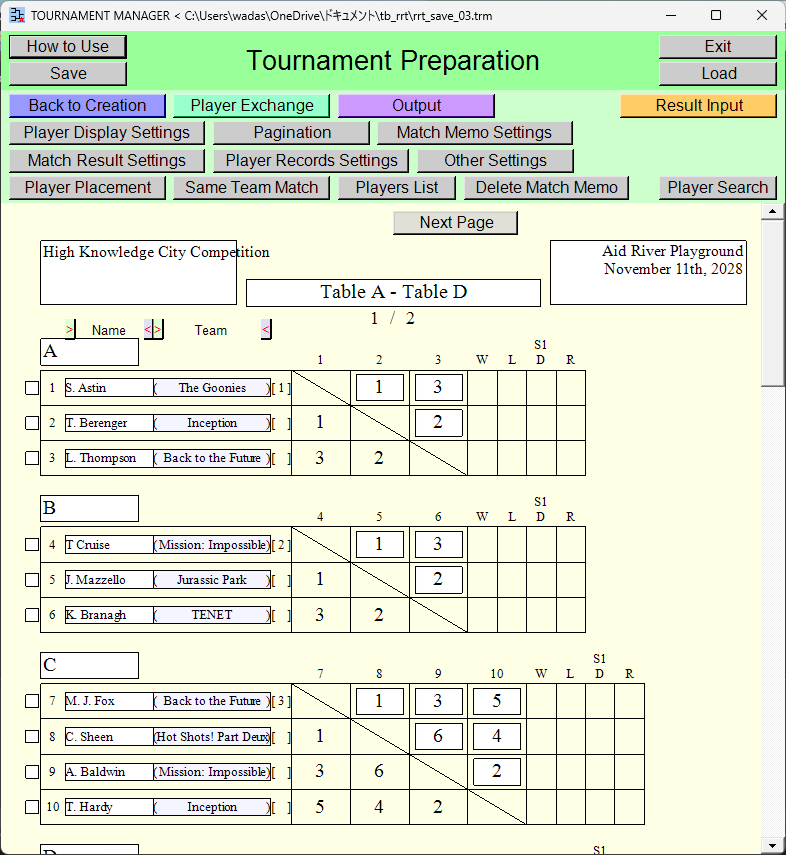
You can input players. If an automatic player lottery was conducted, the results have been inputted.
You can also import players in bulk from an Excel file. (Import Players from an Excel File). You can also automatically check for the same team match. You can also view the list of players.
You can input memos for each match.
You can input text above or below the round-robin table.
[Contents for This Page]
- Input of Players
- Control of Players in Bulk
- Check of the Positioned Players
- Change of Players' Position
- Change of Player Display Settings
- Input of Match Memos
- Input of Page Title, Header, Footer
- Change of Other Settings
- Output of the Round-Robin Table(s)
- Moving to Another Scene
Input of Players
Player input fields
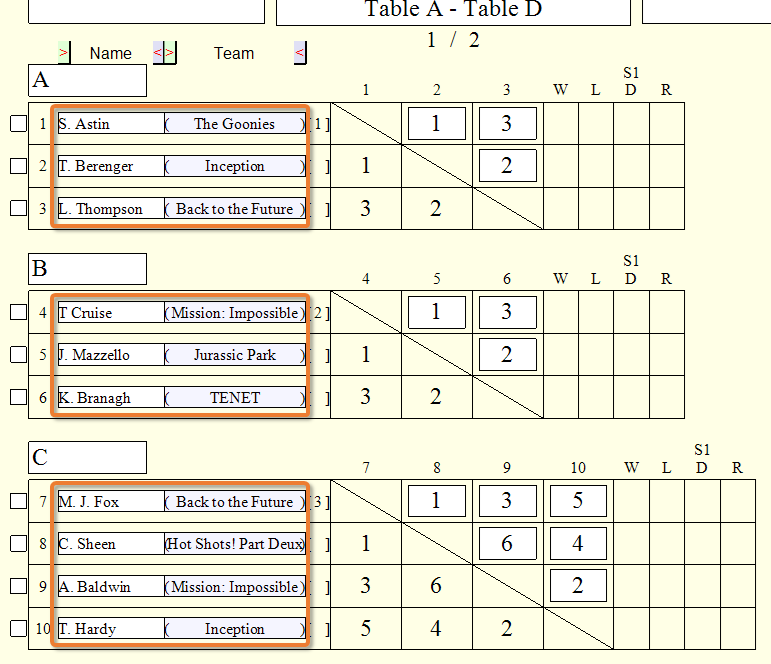
Input players. Left-click the box for each item to display the input field. When you have finished entering into the input field, please left-click somewhere outside of that field.
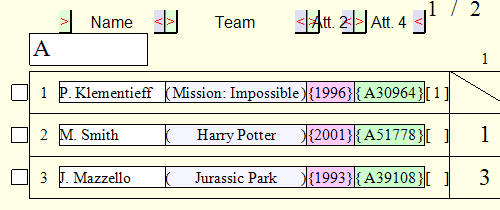
You can use [Name], [Team], [att. 1], [att. 2], [att. 3], [att. 4], [att. 5], [att. 6], [att. 7] as input fields for players. [att. 1] through [att. 7] fields are hidden by default, but you can change this setting via the settings window that appears when you click the [Player Display Settings] button. (Player Display Settings)
Item width change button
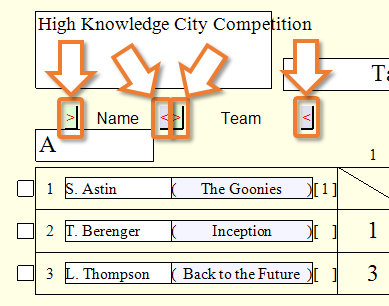
>: You can reduce the width of that item.
<: You can increase the width of that item.
You can also change the item width on the settings window that appears when you click the [Player Display Settings] button. (Player Display Settings)
Control of Players in Bulk
You can controll players in bulk.
[Player Placement] button
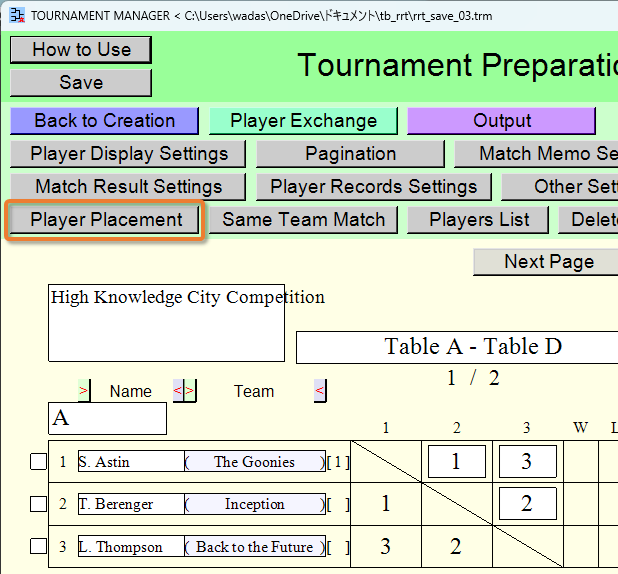
A new window will appear for you to select an operation.
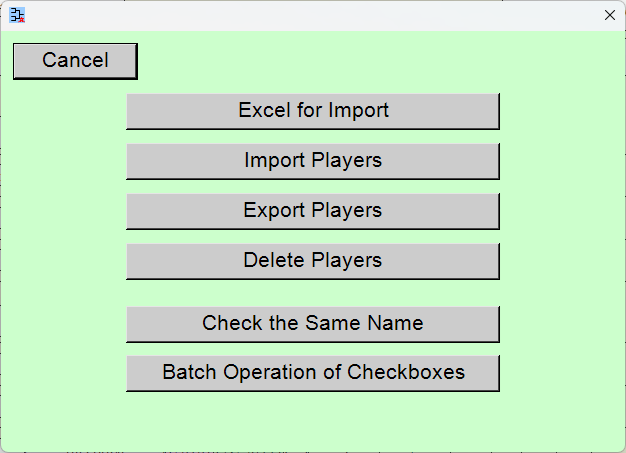
(Import Players from an Excel File)
[Excel for Import] button
You can make an Excel file to import players in bulk. Specify the location and name of the Excel file to be made.
[Import Players] button
You can import players in bulk from an Excel file. Save and close the Excel. Select how to place the players you have imported.
The players are placed in locations where neither the name field nor the team field has been filled in.
When automatically drawing lots to distribute players from the same team, players who have already been entered are also taken into account.
[Export Players] button
You can export players within the specified range to an Excel file. Specify the location and name of the Excel file.
[Delete Players] button
You can delete players within the specified range.
[Same Name Check] button
You can automatically check if the same name exists.
[Batch Operation of Checkboxes] button
You can operate the checkboxes at once.
Check of the Positioned Players
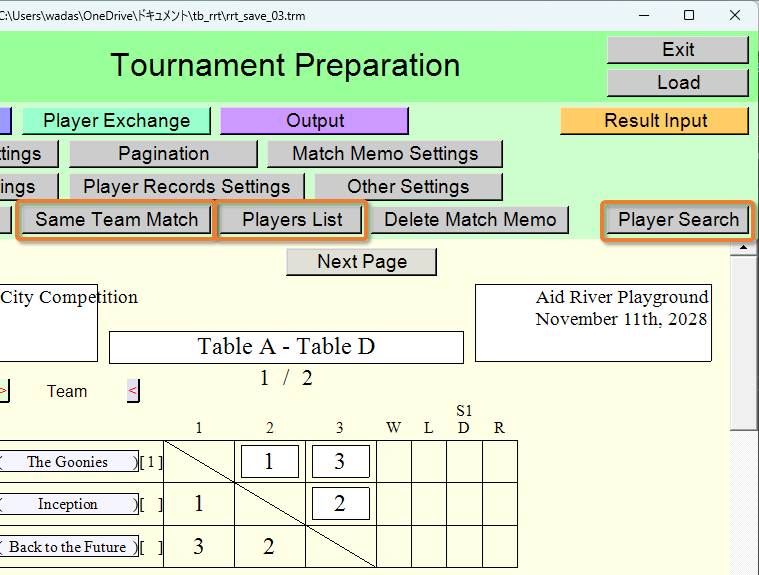
[Same Team Match] button
You can automatically check for the same team match.
![[Same Team Match] window](rrt_tournament_preparation_17.png)
[Players List] button
You can view the list of players.
![[Players List] window](rrt_tournament_preparation_18.png)
You can also output (print [or create PDF file], create PNG [image] file, create Excel file) the list of players.
*If you select printer [Microsoft Print to PDF] during the printing process, you can create a PDF file.
[Player Search] button
You can search for players.
![[Player Search] window](rrt_tournament_preparation_19.png)
Change of Players' Position
[Player Exchange] button
![[Player Exchange] button](rrt_tournament_preparation_21.png)
You can easily exchange positions of two players. You will move to the scene for exchanging players. ([Players Positions Exchange] Scene)
Change of Player Display Settings
[Player Display Settings] button
![[Player Display Settings] button](rrt_tournament_preparation_22.png)
The player display settings window will open. (Player Display Settings) You can change width of each item, order of items on round-robin table, font size, font color, alignment, etc.
![[Player Display Settings] window](rrt_tournament_preparation_23.png)
![[Player Display Settings] window](rrt_tournament_preparation_24.png)
Input of Match Memos
Match memo input fields
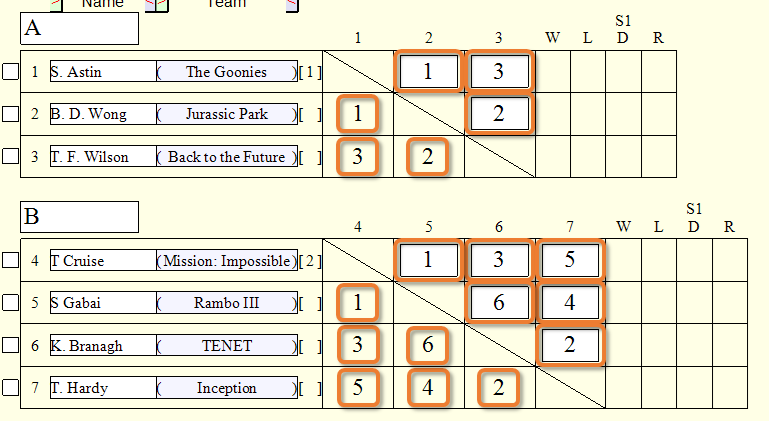
You can input a one-line memo for each match. The match memo for that match will be hidden once the match result (win/loss or score) has been entered. If you select the option to automatically assign match numbers in the [Round-Robin Table Creation] scene, the match numbers are pre-filled. Left-click the box for each match to display the input field. When you have finished entering into the input field, please left-click somewhere outside of that field.
[Match Memo Settings] button
![[Match Memo Settings] button](rrt_tournament_preparation_32.png)
The match memo settings window will open. (Match Memo Settings) You can change settings such as visibility, font size, and font color, etc.
![[Match Memo Settings] window](../81_rrt_settings/22_rrt_game_memo_settings_00.png)
[Delete Match Memo] button
![[Delete Match Memo] button](rrt_tournament_preparation_34.png)
You can delete match memos within the specified range.
Input of Page Title, Header, Footer
Page title and header and footer input fields
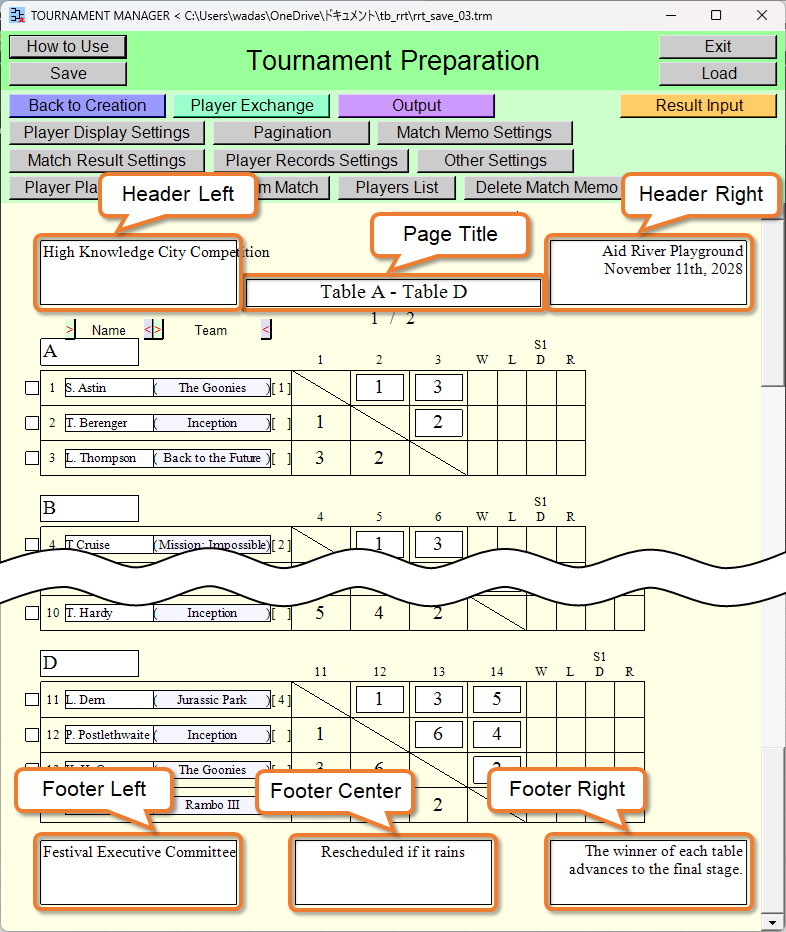
You can input page title, header and footer. Left-click the box for each item to display the input field. When you have finished entering into the input field, please left-click somewhere outside of that field.
Page title, header and footer settings change button
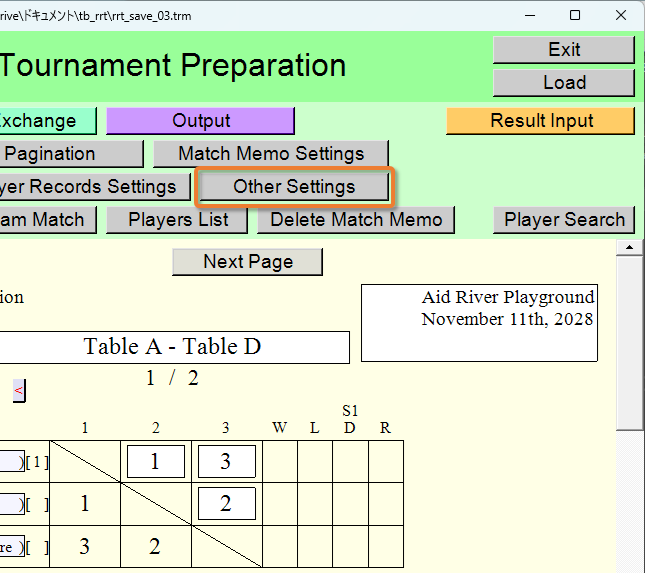
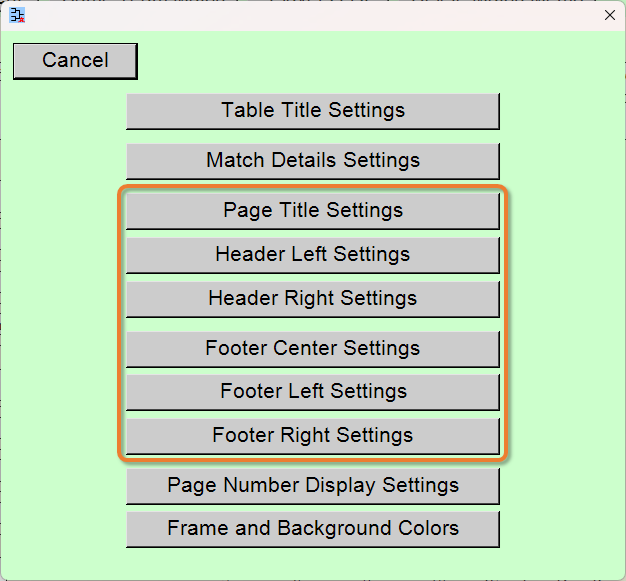
You can change page title, header and footer settings. You can change settings such as visibility, font size, and font color, etc.
Change of Other Settings
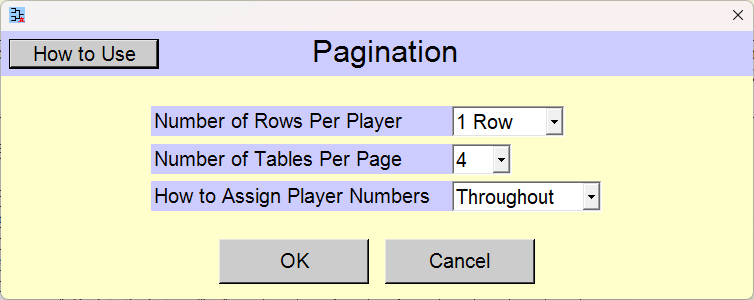
[Pagination] button
![[Pagination] button](rrt_tournament_preparation_51.png)
Even after the round-robin table has been created, you can change the pagination and other settings of the round-robin tables. The pagination settings window will open. (Pagination)
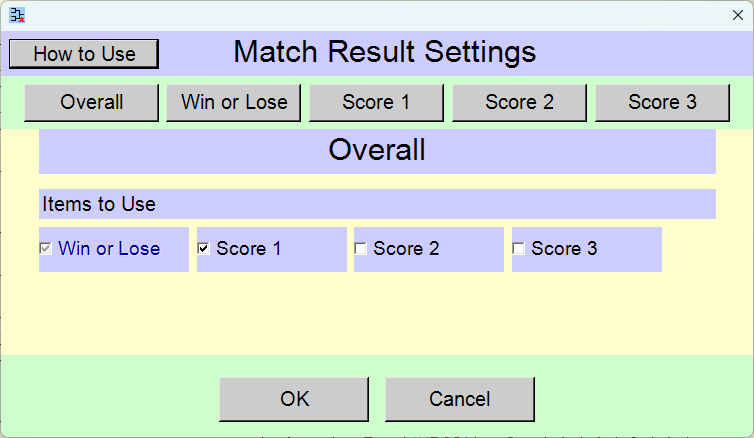
[Match Result Settings] button
![[Match Result Settings] button](rrt_tournament_preparation_53.png)
The match result settings window will open (Match Result Settings). You can change whether or not to use each item, font size, font color, and other settings. Changing the number of items inputted as match results may alter the row height of the table.
*The input field for match results appears on the [Result Input] scene.
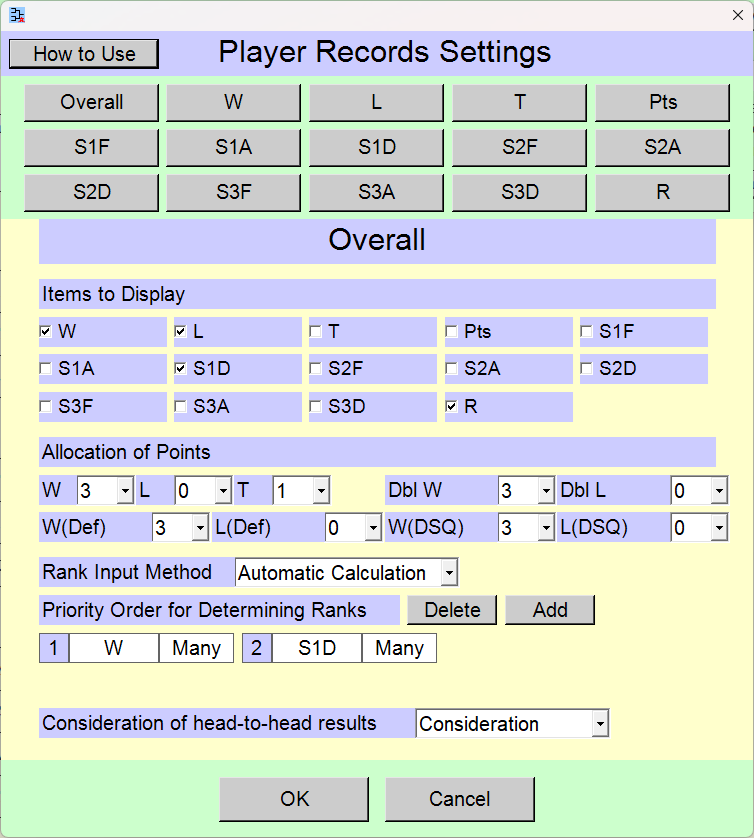
[Player Records Settings] button
![[Player Records Settings] button](rrt_tournament_preparation_55.png)
The player records settings window will open (Player Records Settings). You can change items to display, how rankings are determined, font size, font color, and other settings.
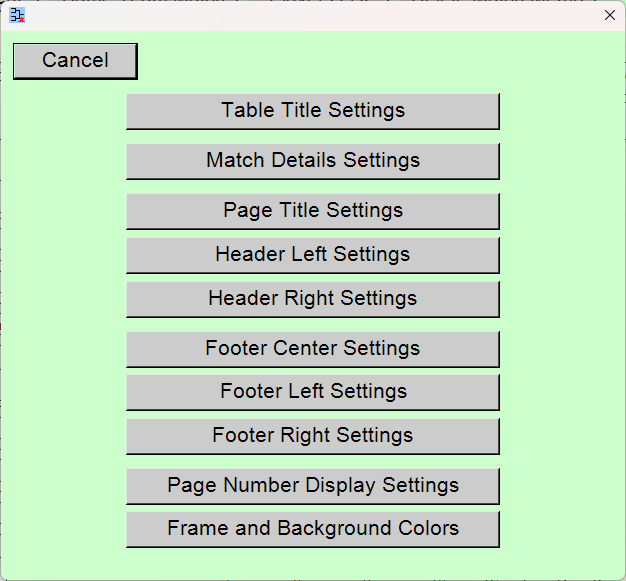
[Other Settings] button
![[Other Settings] button](rrt_tournament_preparation_57.png)
Output of the Round-Robin Table(s)
You can output (print [or create PDF file], create PNG [image] file, create Excel file) the round-robin table(s).
*If you select printer [Microsoft Print to PDF] during the printing process, you can create a PDF file.
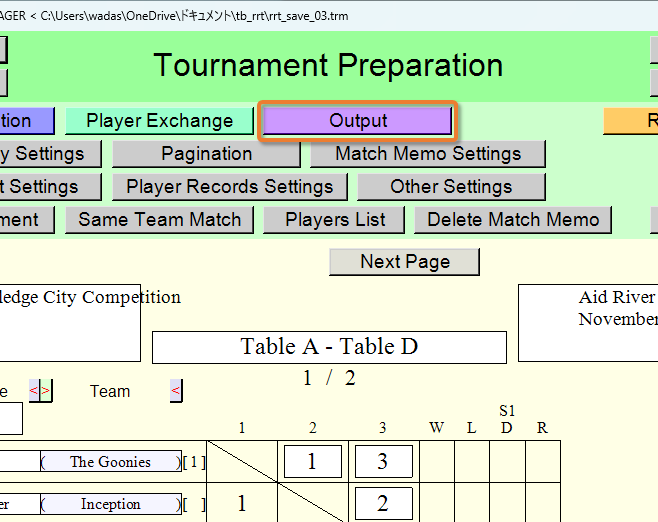
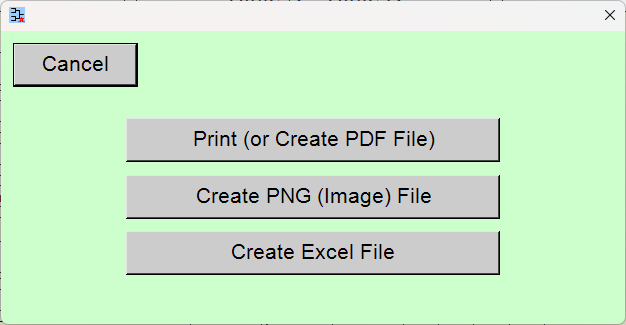
You will proceed to the output preview scene. (Output Preview)
Moving to Another Scene
[Result Input] button
![[Result Input] button](rrt_tournament_preparation_71.png)
You will move to the [Result Input] scene.
[Back to Creation] button
![[Back to Creation] button](rrt_tournament_preparation_72.png)
You will go back to the [Round-Robin Table Creation] scene. If you go back to the [Round-Robin Table Creation] scene, the players data you inputted will be lost. If an automatic player lottery has been conducted, automatic lottery will also be carried out again.
Top Index