
|
User Guide | Index |
Round-Robin Table
Result Input
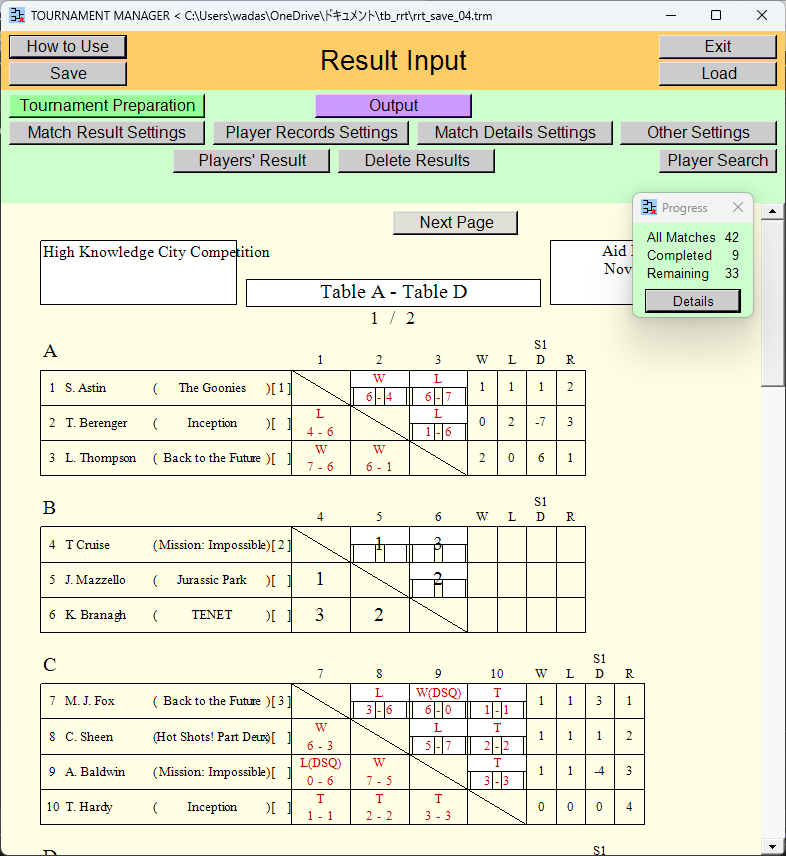
You can input win/lose and scores for each match.
If you wish to input the details for each match on a separate window, that is also possible. Player names are displayed automatically and can be outputted (print [or create PDF file], create PNG [image] file, create Excel file), so it would also work well as a score sheet.
You can view the progress of the tournament. You can view the list of players' result.
[Contents for This Page]
- Input of Win/Lose and Scores
- Input of Match Details
- Display of Players Records
- Check of Tournament Progress
- List of the Players' Result
- Other Functions
- Output of the Round-Robin Table
- Moving to Another Scene
Input of Win/Lose and Scores
Win/Lose selection fields
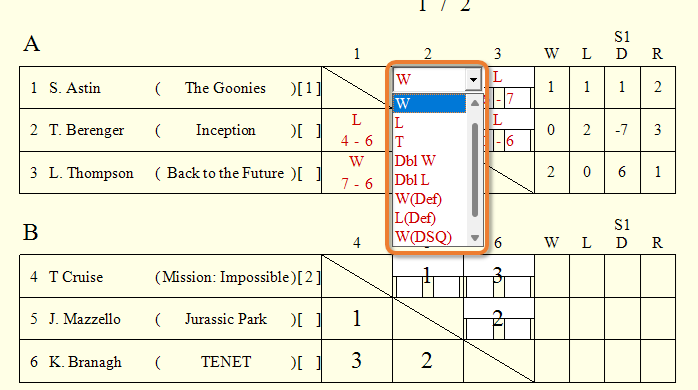
You can input win/lose for each match. Left-click the box for win/lose to display the selection field. When you have finished selecting, please left-click somewhere outside of that field.
[Win/Lose Choices]
| W: | Win |
| L: | Lose |
| T: | Tie |
| Dbl W: | Double Win |
| Dbl L: | Double Lose |
| W(Def): | Win by Default |
| L(Def): | Lose by Default |
| W(DSQ): | Win by Disqualified |
| L(DSQ): | Lose by Disqualified |
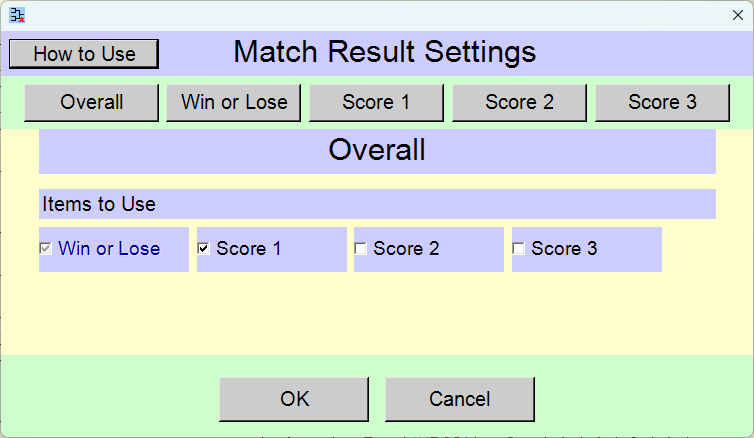
you can change font size, font color and other settings via the settings window that appears when you click the [Match Result Settings] button. (Match Result Settings)
Score input fields
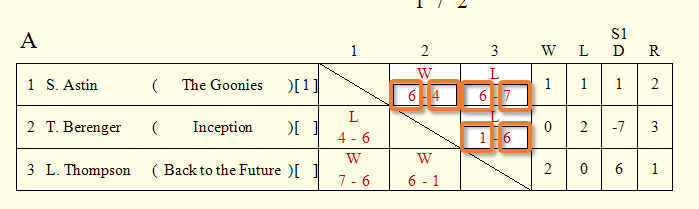
You can input scores for each match. Left-click the box for score to display the input field. When you have finished entering into the input field, please left-click somewhere outside of that field.
It is also possible to input [Score 2] and [Score 3]. you can change font size, font color and other settings. you can change the settings via the settings window that appears when you click the [Match Result Settings] button. (Match Result Settings)
[Match Result Settings] button
![[Match Result Settings] button](rrt_result_input_15.png)
The match result settings window will open (Match Result Settings). You can change whether or not to use each item, font size, font color, and other settings. Changing the number of items inputted as match results may alter the row height of the table.
Input of Match Details
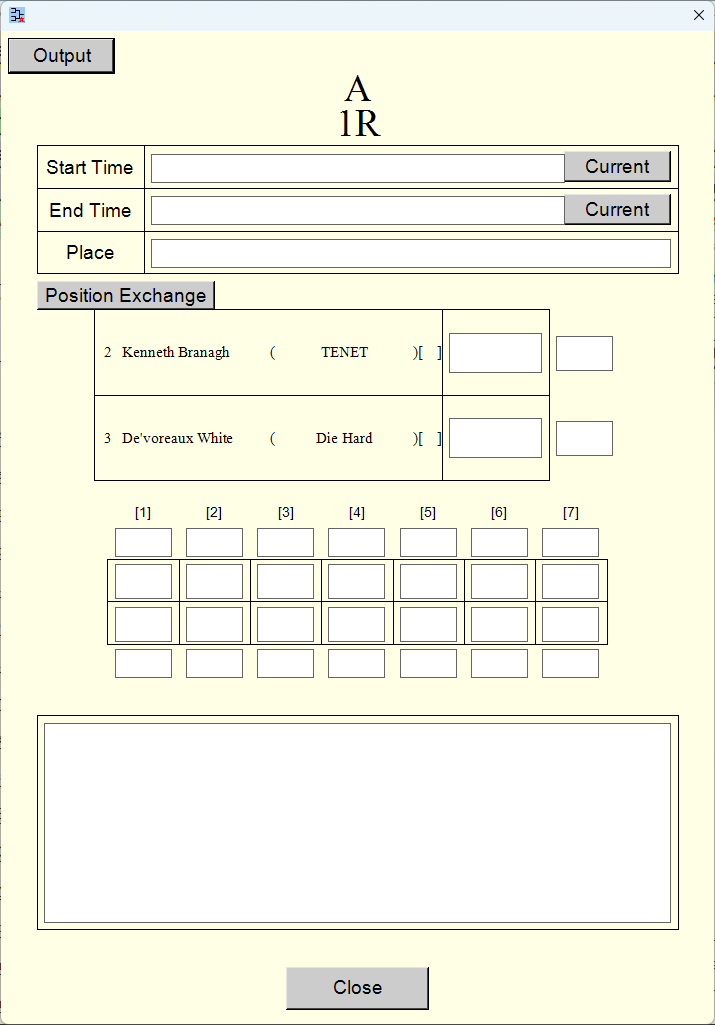
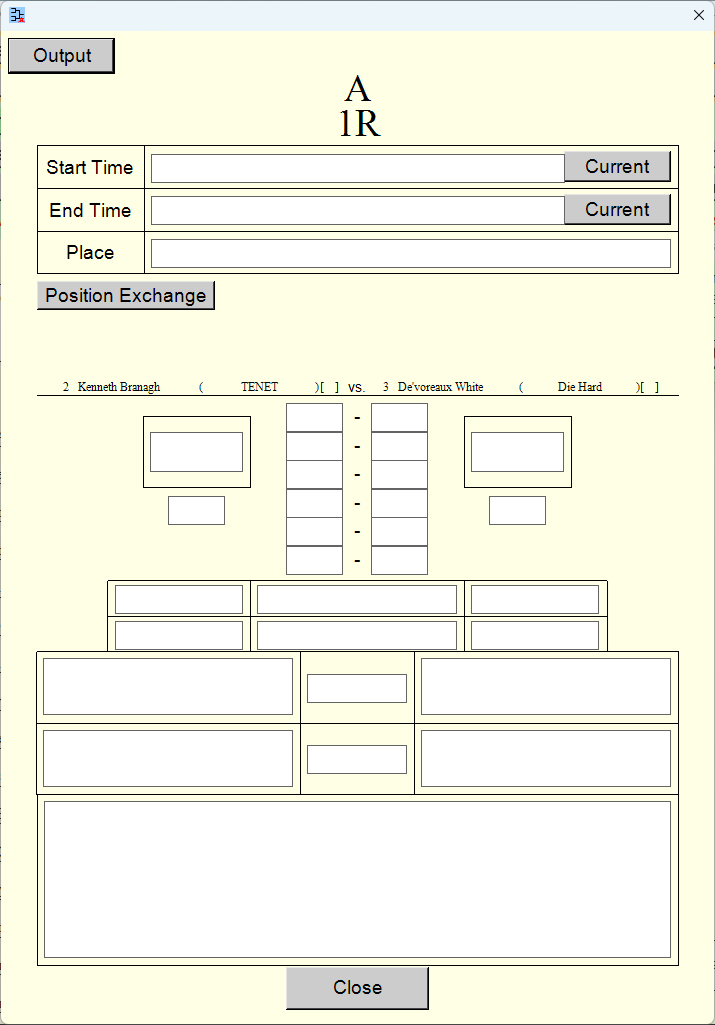
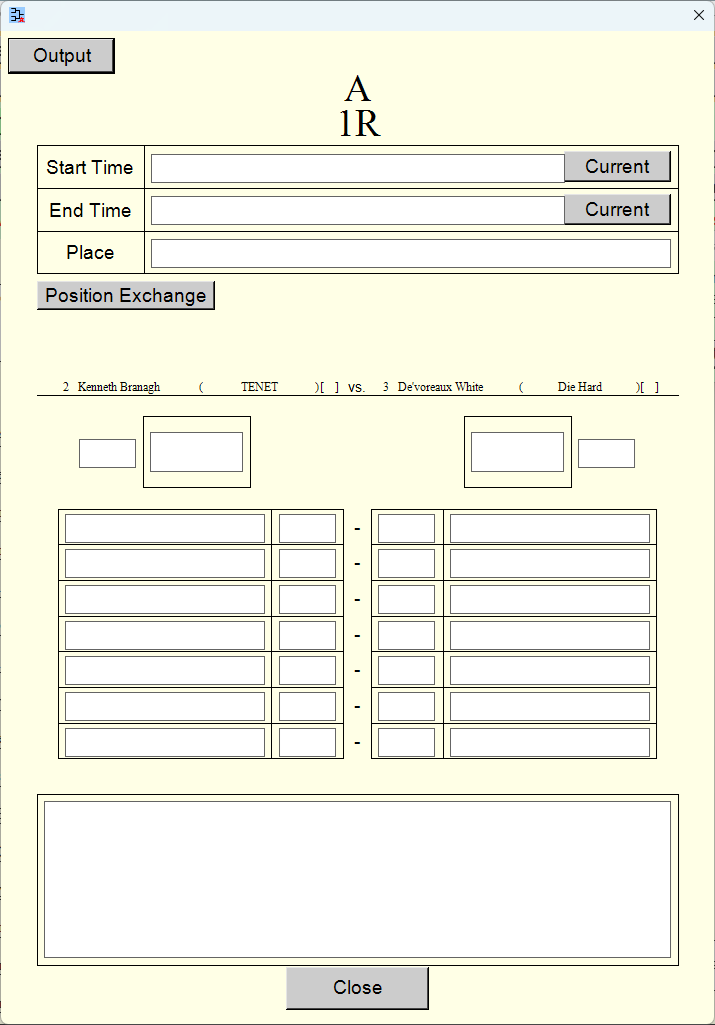
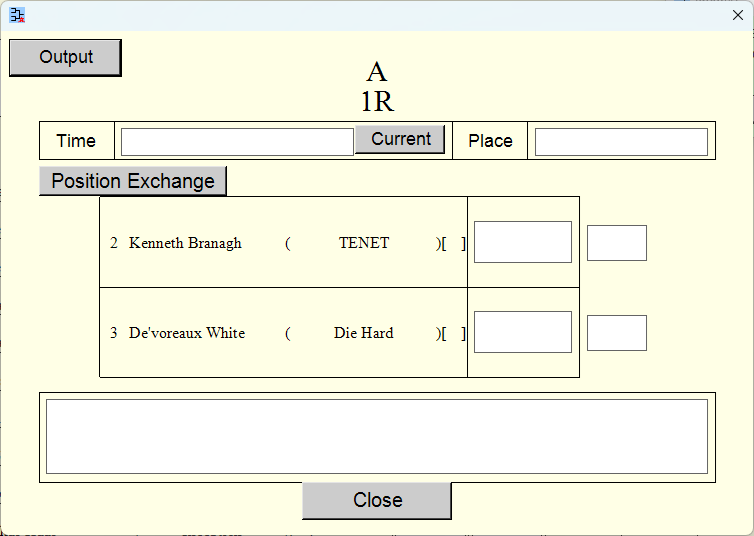
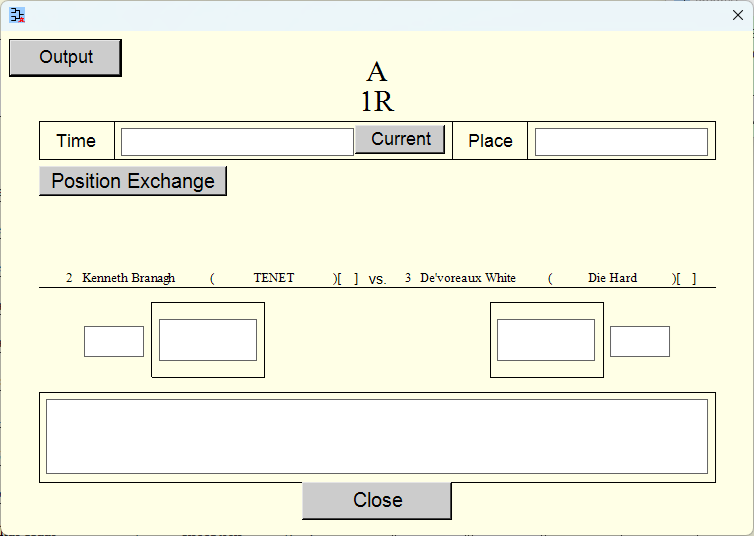
If you wish to input the details for each match on a separate window, that is also possible. Player names are displayed automatically and can be outputted (print [or create PDF file], create PNG [image] file, create Excel file), so it would also work well as a score sheet.
*If you select printer [Microsoft Print to PDF] during the printing process, you can create a PDF file.
If the settings are configured to input match details, the [Dt] buttons will appear on the round-robin table. Pressing the [Dt] button opens a window where you can input details about the match.
![[Dt] buttons](../81_rrt_settings/33_rrt_game_details_settings_01.png)
You can select from several patterns for the match detail format. you can change the setting via the settings window that appears when you click the [Match Details Settings] button. (Match Details Settings)
Match details window
[Match Details Settings] button
![[Match Details Settings] button](rrt_result_input_22.png)
The match details settings window will open. (Match Details Settings) You can change the format of the match details.
![[Match Details Settings] window](../81_rrt_settings/33_rrt_game_details_settings_00.png)
Display of Player Records
Player records are automatically calculated and displayed.
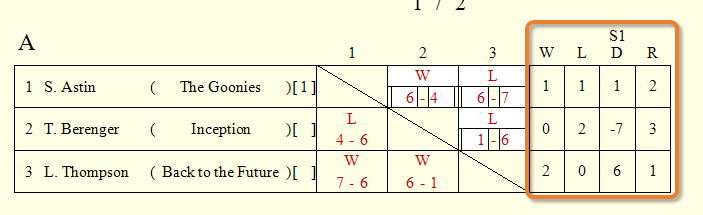
| W: | Wins |
| L: | Losses |
| T: | Ties |
| Pts: | Points |
| S1F: | Scores 1 For |
| S1A: | Scores 1 Against |
| S1D: | Scores 1 Difference |
| S2F: | Scores 2 For |
| S2A: | Scores 2 Against |
| S2D: | Scores 2 Difference |
| S3F: | Scores 3 For |
| S3A: | Scores 3 Against |
| S3D: | Scores 3 Difference |
| R: | Rank |
[Player Records Settings] button
![[Player Records Settings] button](rrt_result_input_32.png)
You can change items to display, how rankings are determined, font size, font color, and other settings via the settings window that appears when you click the [Player Records] button. (Player Records Settings)
Check of Tournament Progress
You can view the tournament progress.
Tournament progress window
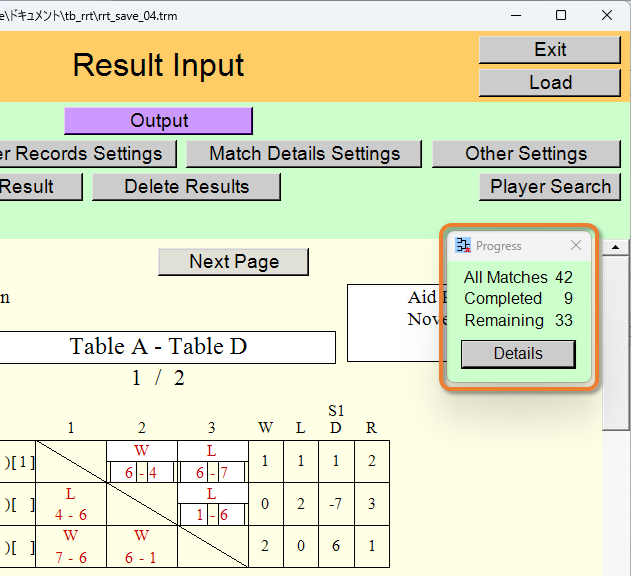
You can view the number of remaining match, etc.
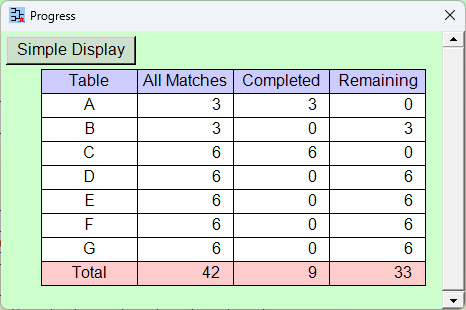
If you press the [Details] button, you can view the remaining matches in each table, etc.
List of the Players' Result
[Players' Result] button
![[Players' Result] button](rrt_result_input_51.png)
You can view the list of the players' result.
![[Players' Result] window](rrt_result_input_52.png)
You can also output (print [or create PDF file], create PNG [image] file, create Excel file) the list of the players' result.
*If you select printer [Microsoft Print to PDF] during the printing process, you can create a PDF file.
Other Functions
[Delete Results] button
![[Delete Results] button](rrt_result_input_61.png)
You can delete results (wins and losses, scores, match details) within the specified range.
![[Delete Results] window](rrt_result_input_62.png)
[Player Search] button
![[Player Search] button](rrt_result_input_63.png)
You can search for players.
![[Delete Results] window](rrt_result_input_64.png)
[Other Settings] button
![[Other Settings] button](rrt_result_input_65.png)
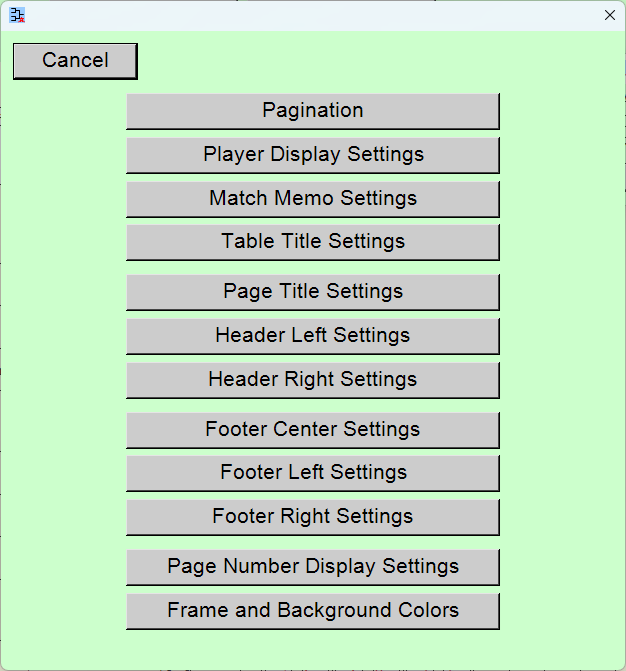
Output of the Round-Robin Table
You can output (print [or create PDF file], create PNG [image] file, create Excel file) the round-robin tables.
*If you select printer [Microsoft Print to PDF] during the printing process, you can create a PDF file.
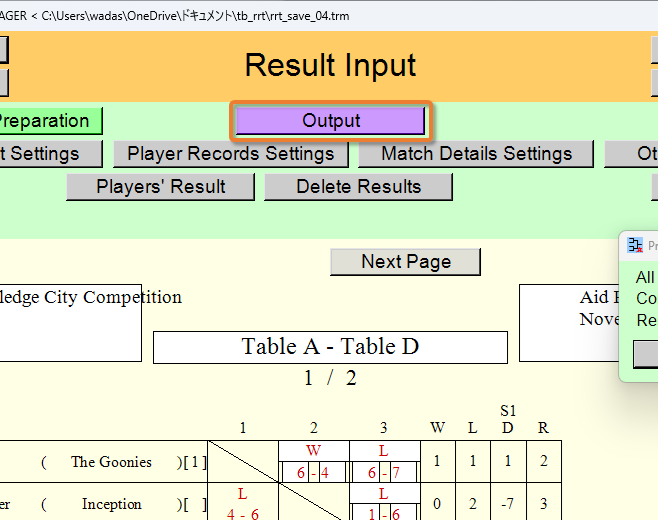
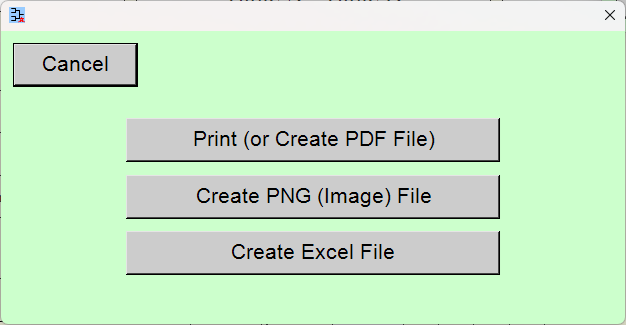
You will proceed to the output preview scene. (Output Preview)
Moving to Another Scene
[Tournament Preparation] button
![[Tournament Preparation] button](rrt_result_input_81.png)
You will go back to the [Tournament Preparation] scene.
Top Index