
|
User Guide | Index |
Round-Robin Table
Lottery Preparation
If you select to conduct an automatic lottery from the title scene, you will proceed to this scene.
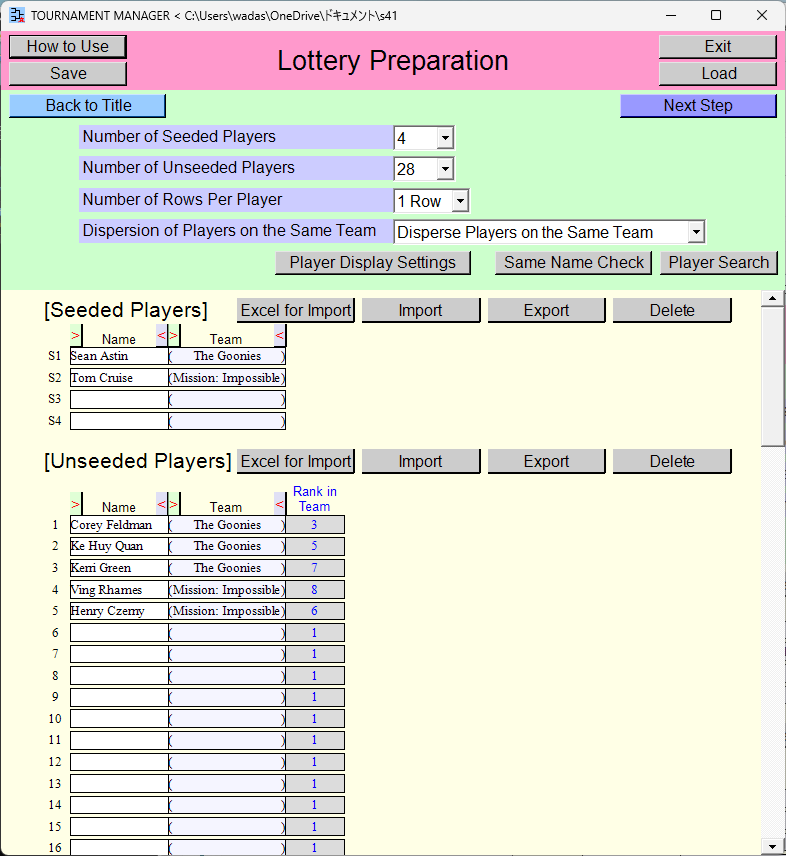
Select the number of seeded players and the number of unseeded players. Select how to conduct the automatic lottery.
Input seeded players and unseeded players. You can also import players in bulk from an Excel file. (Import Players from an Excel File)
Press the [Next Step] button after you have finished inputting on this scene.
[Contents for This Page]
- Selection of The Number of Seeded Players and the Number of Unseeded Players
- Selection of Number of Rows Per Player
- Selection of How to Conduct the Automatic Lottery
- Input of Players
- Control of Players in Bulk
- Change of Settings
- Check of Players
- Proceed to the next step
Selection of The Number of Seeded Players and the Number of Unseeded Players
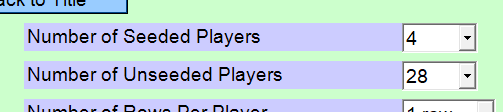
[Number of Seeded Players] selection field
Select the number of seeded players. Seeded players are placed in positions corresponding to their seed ranks.
[Number of Unseeded Players] selection field
Select the number of unseeded players. Unseeded players are automatically assigned positions via a random draw.
Selection of Number of Rows Per Player

[Number of Rows Per Player] selection field
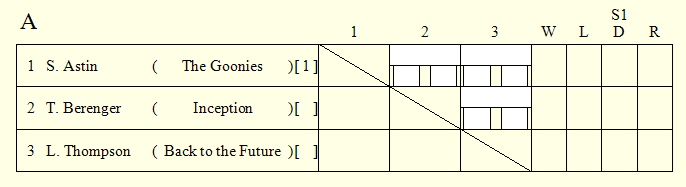
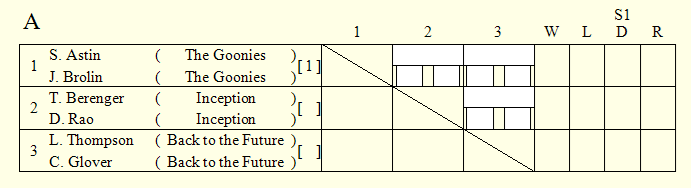
You can display each player across two lines. It is intended primarily for use in doubles events.
[1 Row]
[2 Rows]
Selection of How to Conduct the Automatic Lottery

[Dispersion of Players on the Same Team] selection field
Select whether to distribute players from the same team as widely as possible when automatically drawing lots for unseeded players.
[Disperse Players on the Same Team]
Players from the same team are automatically distributed as widely as possible.
Players with the same text inputted in the [Team] field are recognized as belonging to the same team. If a player is displayed across two lines, only the [Team] on the first line is taken into account. Players with a blank [Team] are recognized as belonging to different teams.
And players from the same team are automatically distributed to ensure their position ranks on the round-robin table are as widely as possible.
If you wish to distribute players from different teams, you can achieve this by inputting the same text string in the [Team] field, inputting the actual team name in an [att. 1] field, and then hiding the [Team] field.
[Team > Attachement 1]
Players from the same team are automatically distributed as widely as possible, and players from the same [att. 1] within each team are automatically distributed as widely as possible.
*[att. 1] through [att. 7] fields are hidden by default, but you can change this setting via the settings window that appears when you click the [Player Display Settings] button. (Player Display Settings)
[Team > Attachement 1 > Attachement 2]
Players from the same team are automatically distributed as widely as possible, and players from the same [att. 1] within each team are automatically distributed as widely as possible, and players from the same [att. 2] within each team and [att. 1] are automatically distributed as widely as possible.
Input of Players
Player Input fields
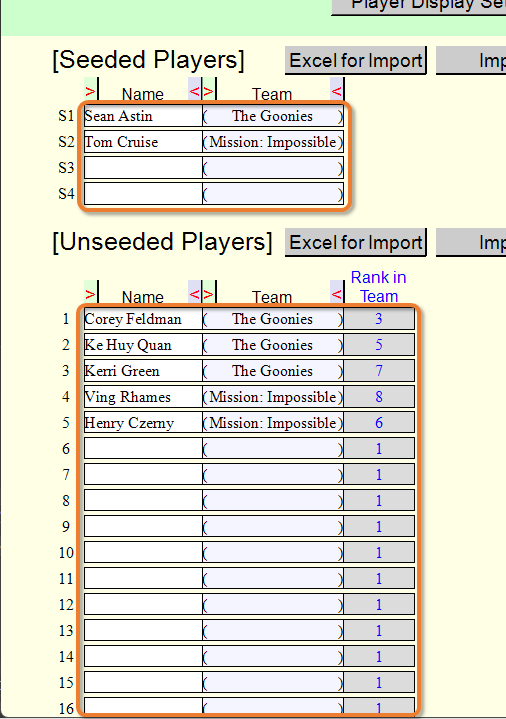
Input seeded players and unseeded players. Left-click the box for each item to display the input field. When you have finished entering into the input field, please left-click somewhere outside of that field.
Input the seeded players in order of their seed rank. they will be automatically placed in their respective seeded positions.
For unseeded players, if you select their rank within the team (Rank in Team), that information will be taken into account during the automatic lottery. Among the positions assigned to the team's players, those with higher ranks are placed in higher rank positions on the round-robin table.
*Rank within the team, only the order itself is significant. For example, [1, 2, 3] and [30, 50, 90] have the same meaning. A team's internal rank is independent of the internal ranks of other teams.
You can use [Name], [Team], [att. 1], [att. 2], [att. 3], [att. 4], [att. 5], [att. 6], [att. 7] as input fields for players. [att. 1] through [att. 7] fields are hidden by default, but you can change this setting via the settings window that appears when you click the [Player Display Settings] button. (Player Display Settings)
Item width change button
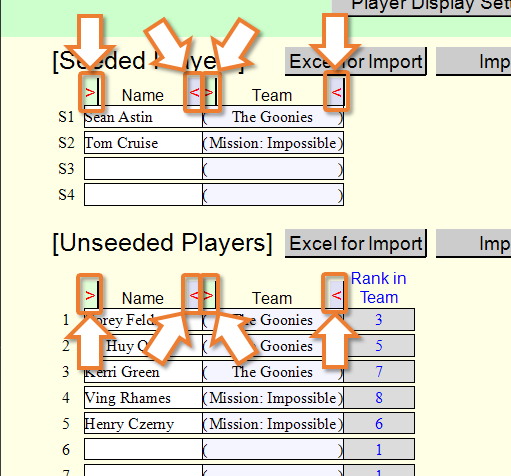
>: You can reduce the width of that item.
<: You can increase the width of that item.
You can also change the item width on the settings window that appears when you click the [Player Display Settings] button. (Player Display Settings)
Control of Players in Bulk
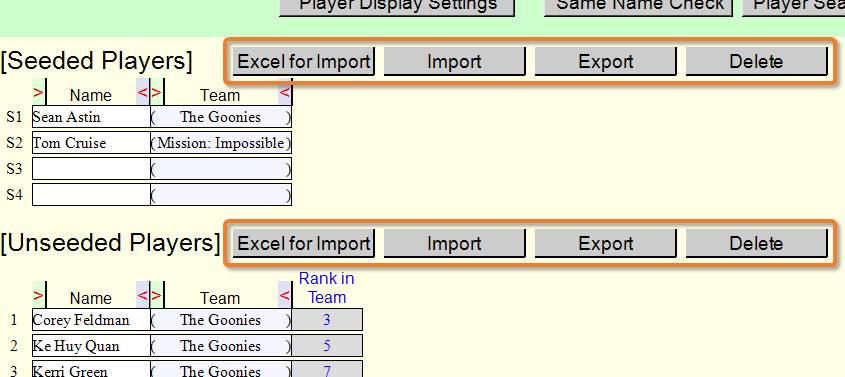
You can controll seeded players or unseede players in bulk. (Import Players from an Excel File)
[Excel for Import] button
You can make an Excel file to import players in bulk. Specify the location and name of the Excel file to be made.
[Import] button
You can import players in bulk from an Excel file. Save and close the Excel. Specify the placement range and the Excel file to import.
[Export] button
You can export players within the specified range to an Excel file. Specify the location and name of the Excel file.
[Delete] button
You can delete players within the specified range.
Change of Settings
[Player Display Settings] button
The player display settings window will open. (Player Display Settings) You can change width of each item, order of items on round-robin table, font size, font color, alignment, etc.
![[Player Display Settings] window](rrt_lottery_preparation_22.png)
![[Player Display Settings] window](rrt_lottery_preparation_23.png)
You can change the player display settings even after creating the round-robin table.
Check of Players
[Same Name Check] button
You can automatically check if the same name exists.
![[Same Name Check] window](rrt_lottery_preparation_32.png)
[Player Search] button
You can search for players.
![[Player Search] window](rrt_lottery_preparation_33.png)
Proceed to the next step
[Next Step] button
After you have finished inputting on this scene, press the [Next Step] button. You will proceed to the next scene [Round-Robin Table Creation].
Top Index